Chapter 03

IDS file loading, checking, and result review

Load IFC and IDS files, use the built-in demo files when needed, run IDS checking, and move from report summaries into detailed failed-result inspection.

Load IFC and IDS files, run checking, and open results

The IDS Checking panel contains the file controls, checking action, and report buttons. You can upload IFC and IDS files from your computer, or use the cloud-download buttons beside the upload controls to load the built-in demo files prepared for this tutorial.

What is IDS? Information Delivery Specification (IDS) is a buildingSMART standard for defining machine-readable information requirements. See the buildingSMART IDS page and the IDS GitHub repository for the official specification resources.
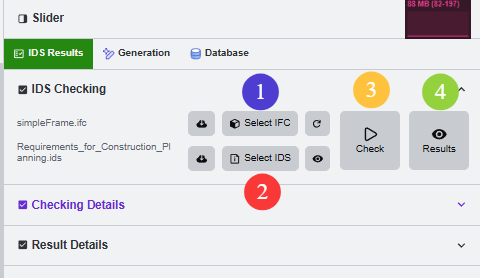
IDS Results panel showing file selectors, Check, Results, Checking Details, and Result Details

  • Cloud download beside IFC. Load the built-in demo IFC file from the server.
  • Select IFC. Upload an IFC model from your local computer.
  • Cloud download beside IDS. Load the built-in demo IDS file from the server.
  • Select IDS. Upload an IDS requirement file from your local computer.
  • Check. Run IDS validation against the selected model and specification.
  • Results. Open the generated HTML report viewer.
  • Checking Details and Result Details. Expand the structured result tables and selected-result details.

Run IDS and read the summary

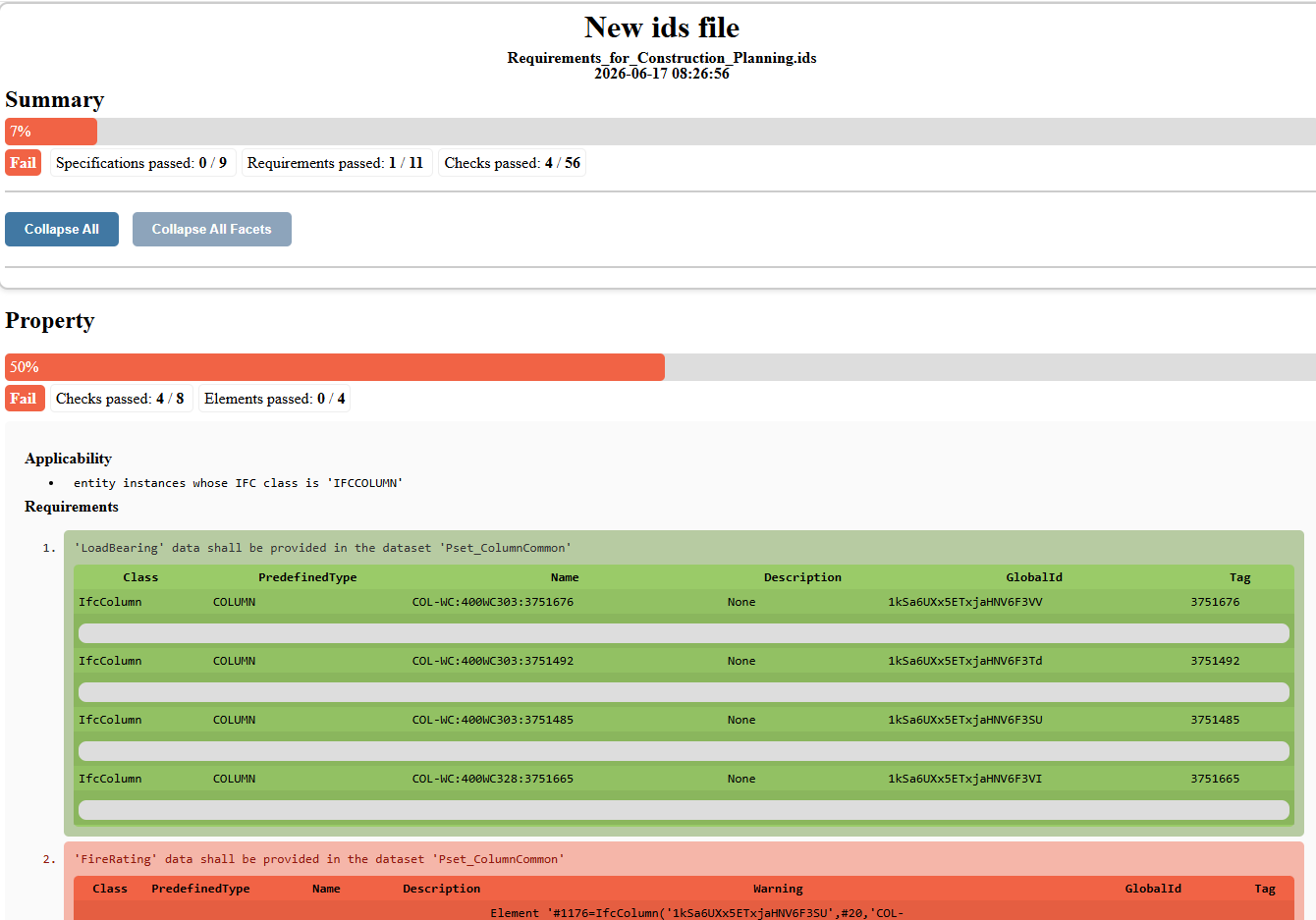
After loading the IFC and IDS files, the check produces a report summary and a statistics table. These two views tell you whether the validation ran successfully and how much of the specification passed.
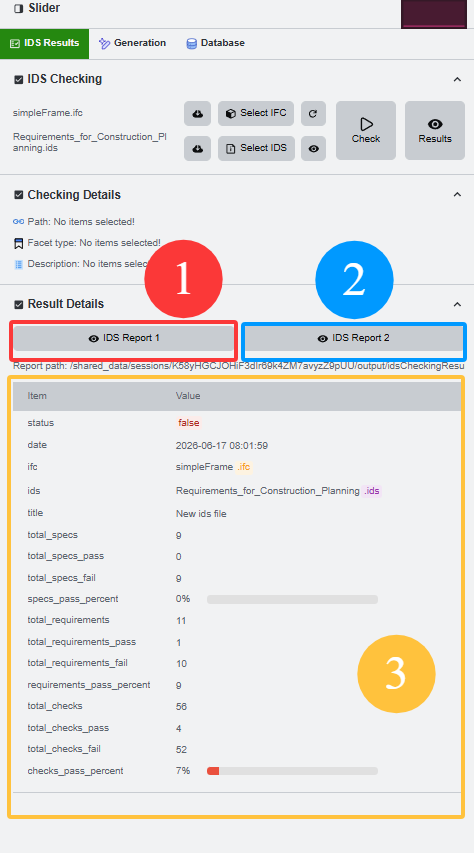
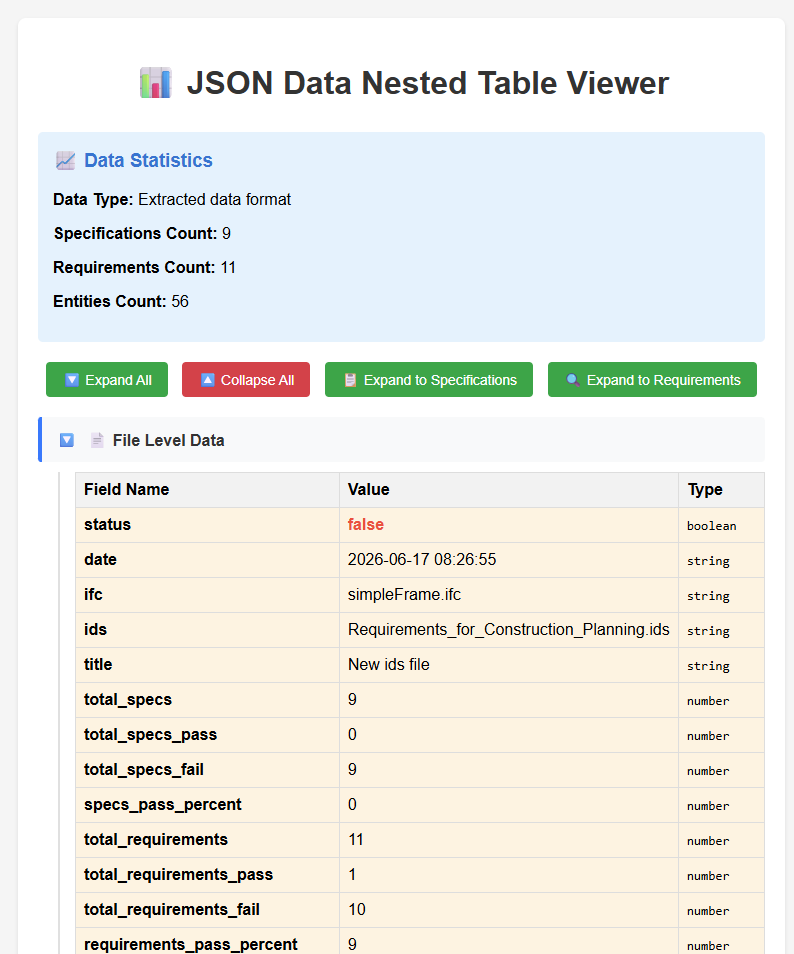
IDS checking controls with Select IFC, Select IDS, Check, and Results buttons

Statistics table for IDS checking results

IDS result summary with pass and fail rows

  • Statistics table. Confirms the specification, requirement, entity, and pass or fail counts.
  • Summary table. Shows which requirements passed and which need attention.
  • Result buttons. Open the generated reports after the check finishes.

Read the detailed result tables

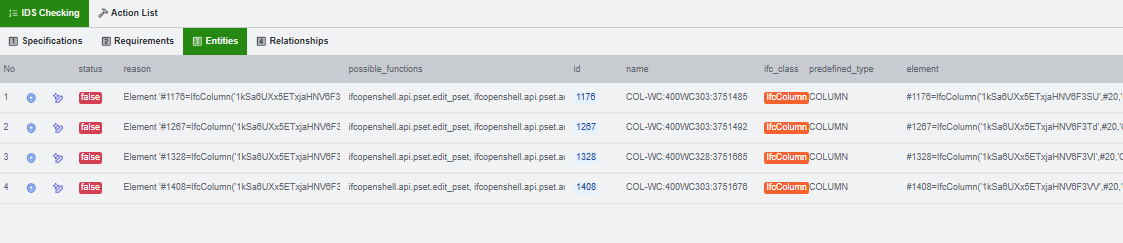
The detailed tables break the result into rows that can be traced back to the model. This is where you see which entity, property, or relationship caused the check to fail.

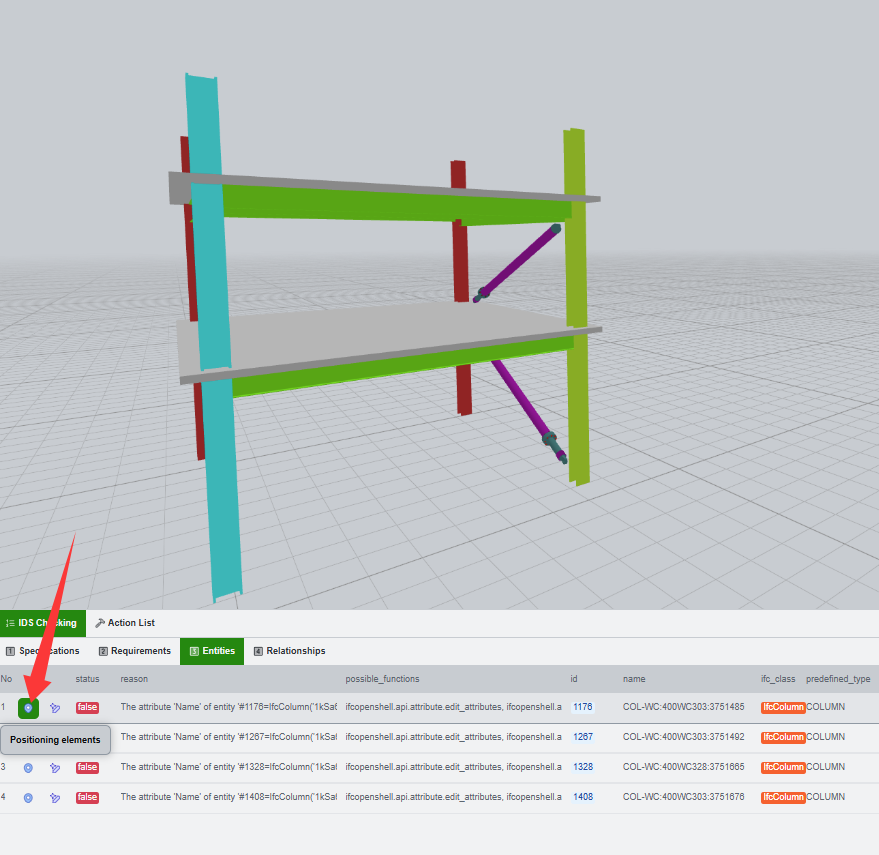
Once a failure is identified, inspect the affected object in the model view and compare the failed value with the selected object's properties. This connects the report row to the model element that needs attention.
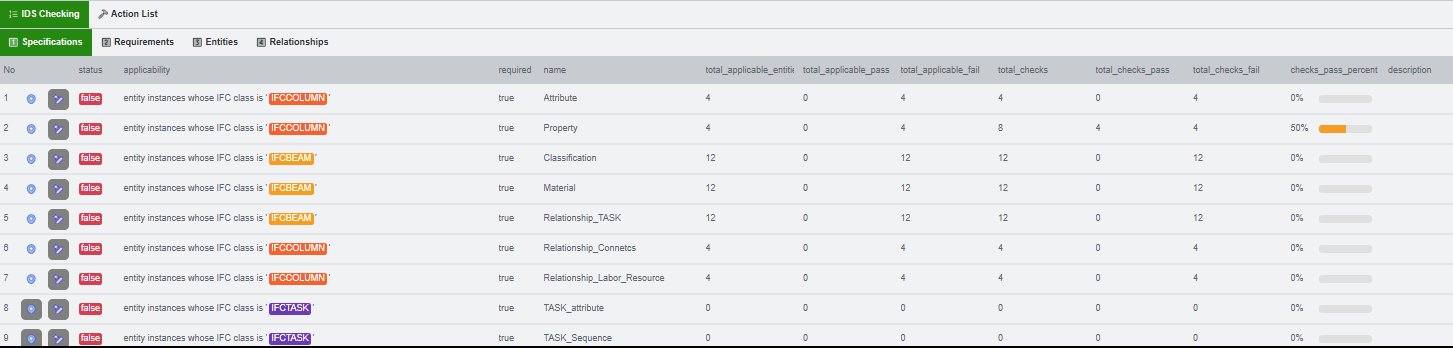

IDS result table with requirements and status rows

Action list and requirement rows

  • Requirement rows. Show what the IDS expects.
  • Status colours. Separate passing and failing checks immediately.
  • Action list. Helps track the checking steps that were executed.

Specification list view

Requirement matching view

Entity detail view

  • Specification tab. Group requirements by IDS specification.
  • Requirements tab. Show the individual requirements that need to be satisfied.
  • Entities tab. Show which IFC entities are matched by the rule.
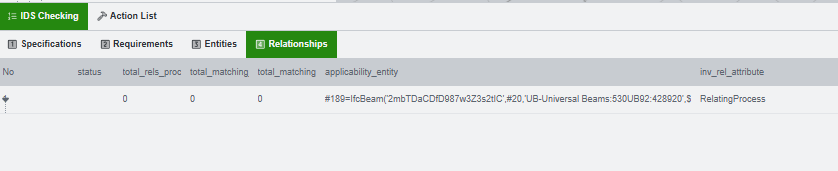
  • Relationships tab. Show relation-based checks.
  • Result Details. Expand the selected row to see the failure text.
  • Viewport. Inspect the object that the result refers to.
  • Property panels. Compare the model value with the IDS requirement before preparing an edit.