

Chapter 04
AI-assisted IFC editing preparation
Prepare the information that the AI editing workflow needs: the failed IDS context, structured model knowledge, project documents, embedded vector chunks, and retrieved evidence for generation.
Understand the AI editing workflow
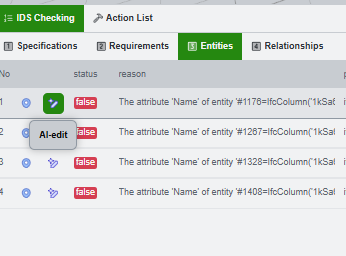
AI-assisted editing starts from a checked IDS result. Select or inspect the failed requirement first, then prepare the knowledge that explains the model, the rule, and the project context before asking the LLM to generate an edit.
Check before editing. Treat generated edits as draft operations. Review the failed IDS row, the selected model object, and the generated command list before running a script against the IFC model.
Understand the two knowledge areas
The Generation tab contains two different kinds of knowledge. Keep them separate when reading the interface.
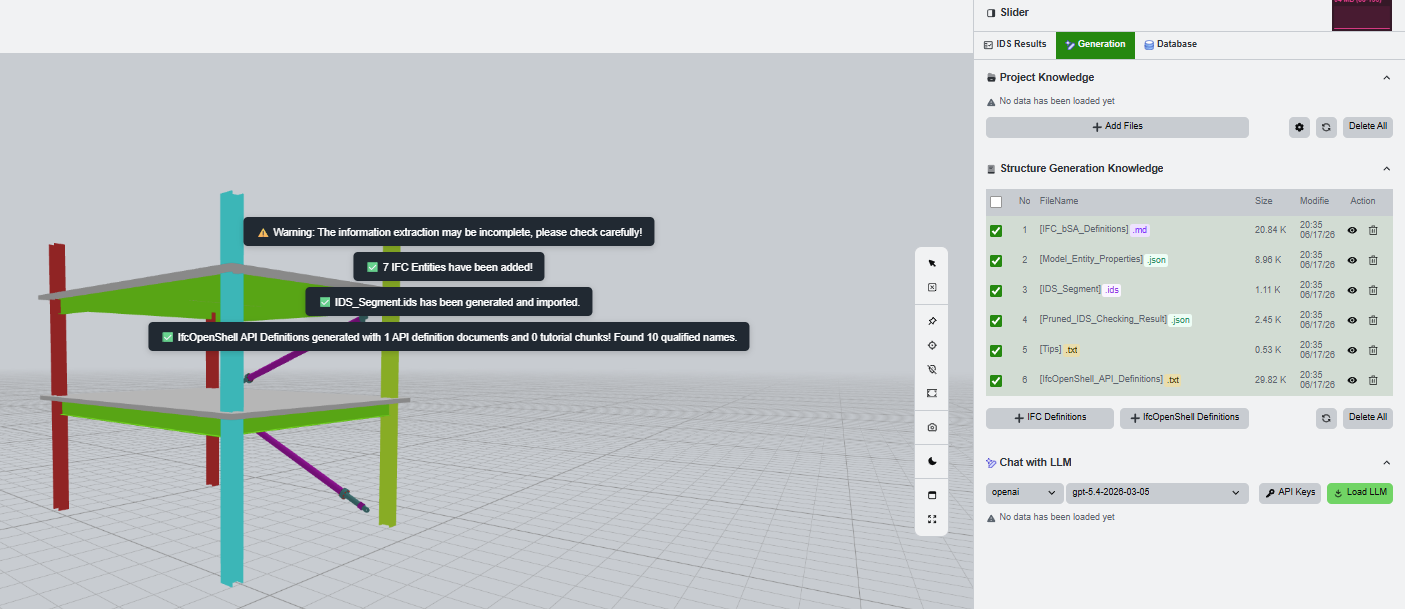
Review structure generation knowledge
The structure generation table lists system-generated knowledge files. Select the files that are relevant to the current IDS failure before previewing or sending a request.
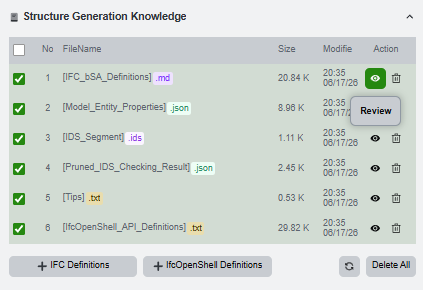
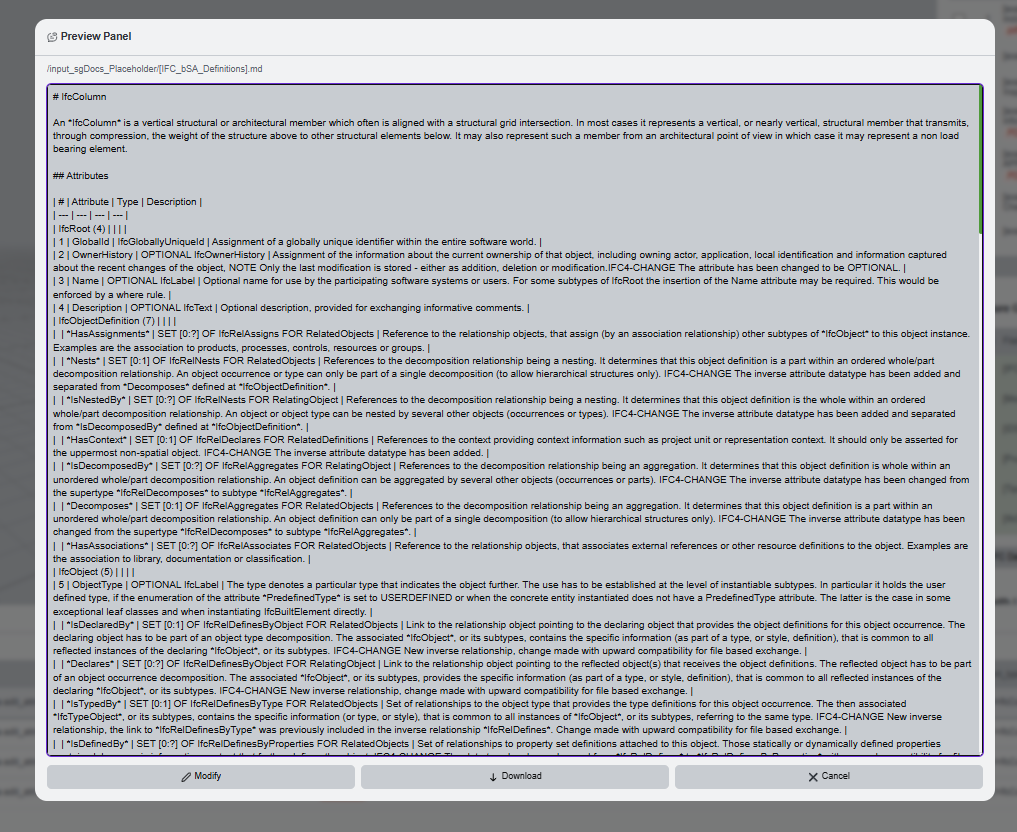
Preview the files when you are unsure what will be sent to the LLM. The preview is especially useful for long definition files.
Upload project documents
Project documents are uploaded by the user. They can be embedded into the vector database and later retrieved through RAG.
API key reminder. If embedding reports that an API key is missing, open Load the LLM and set a temporary key before trying again.
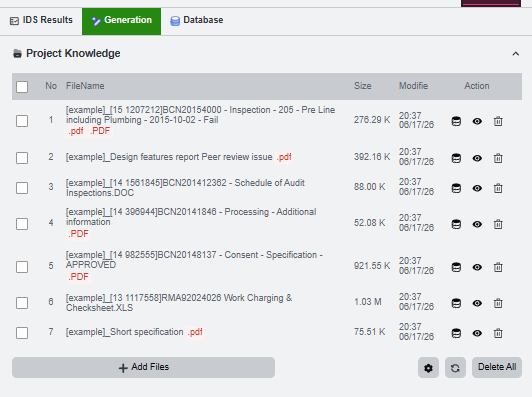
Select the document row before embedding or previewing it. Uploaded files are isolated to the current browser session.
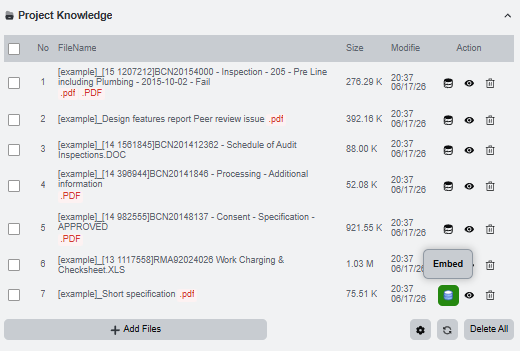
Embed project documents
Embedding turns an uploaded document into vector chunks that can be searched later. Open the embedder settings from the database icon in Project Knowledge.
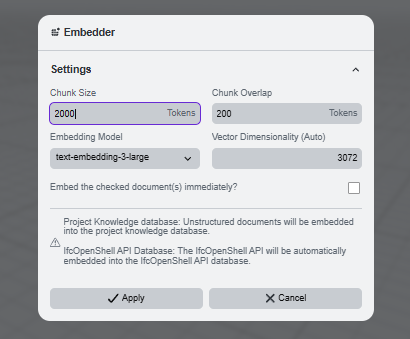
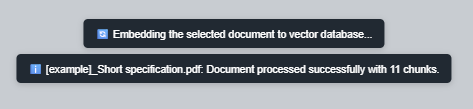
A successful embed reports the processed file and the number of chunks written. If embedding fails, the toast shows the returned error; a missing OpenAI key is the most common cause when using OpenAI embeddings.


Verify the vector database
After embedding, open the RAG Vector Database tab and refresh the table. The embedded document should appear with its chunk count.
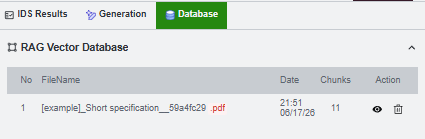
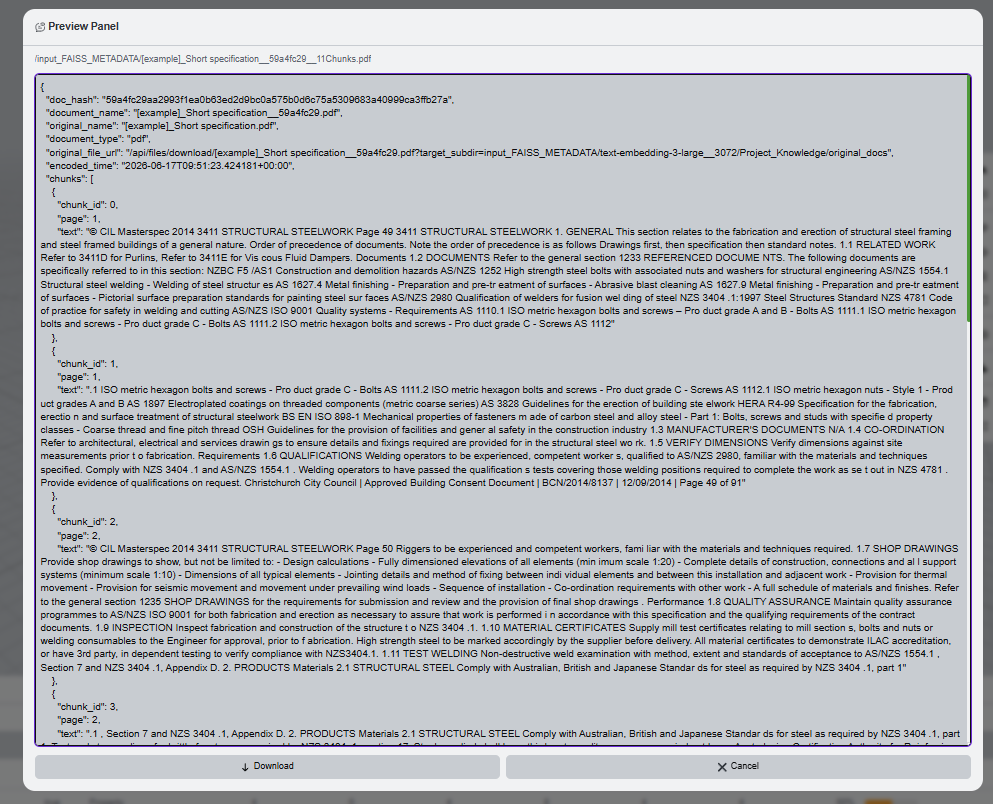
The preview action opens database metadata. Use it to confirm document hashes, chunk information, and original source paths.
Retrieve knowledge with RAG
Retrieval should be done after the table confirms that the document exists in the vector database. Use a focused query tied to the IDS failure or project specification.
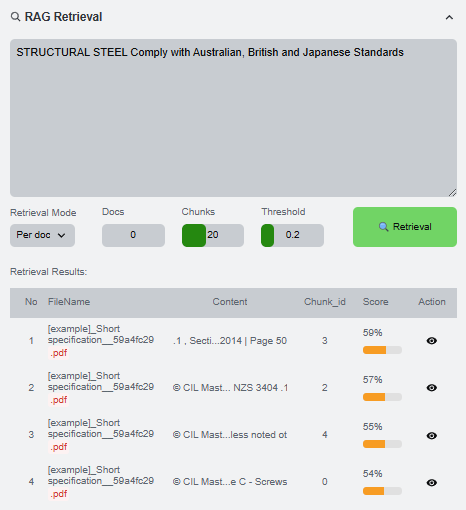
- Select the Project Knowledge database when querying uploaded project documents.
- Refresh the table if it was open before embedding.
- Enter a focused query related to the IDS failure or project specification.
- Choose the number of documents and chunks to retrieve.
- Run retrieval and inspect the returned chunks before generating a request.