Chapter 05

Generate, execute, and recheck

Finish the workflow by selecting the final knowledge set, loading the LLM, previewing the prompt, generating structured commands, executing the edit, saving the model, and running IDS checking again.

Prepare the final knowledge set

A useful generation request usually combines project documents with structured model and IDS knowledge. Before loading the model for generation, check that the relevant files are visible and selected.
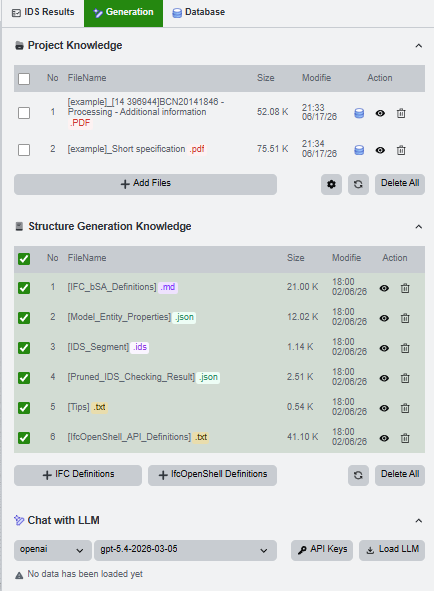
Generation tab with project documents, selected knowledge, and LLM panel

  • Project document selected. The project-side knowledge can be embedded and retrieved.
  • Structured knowledge selected. Definitions, IDS segments, results, tips, and API definitions are ready for prompt construction.
  • LLM panel visible. The generation controls are ready for model loading and prompt preview.

Load the LLM

In the Chat with LLM panel, choose a provider and model, then load the model. If the server does not already have a key, use the temporary API key dialog first.
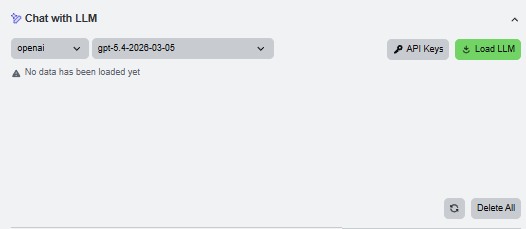
Chat with LLM panel with provider, model, API Keys, and Load LLM controls

  • Provider selector. Choose the LLM provider.
  • Model selector. Choose the model used for generation.
  • API Keys. Open the temporary key dialog.
  • Load LLM. Initialize the selected model.

Use temporary API keys

The API key dialog accepts provider keys for the current browser session. The keys are not written to the server file system; they are used only for requests made while the page is open.
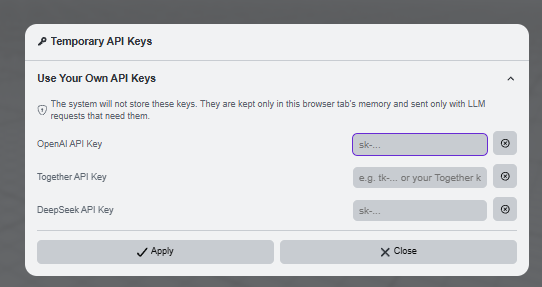
Temporary API Keys dialog with OpenAI, Together, and DeepSeek fields

  • OpenAI API Key. Required for OpenAI chat models and embeddings when the server has no key.
  • Together API Key. Used for Together model calls.
  • DeepSeek API Key. Used for DeepSeek official API calls.
  • Clear buttons. Remove values from individual fields before applying.

After applying a key and loading the model, the page confirms the model initialization through a toast.

Toast confirming temporary API key and model initialization

Check the prepared knowledge before generation

The generation workflow begins after the project documents and structural knowledge have been selected. The panel should show the relevant chips and the LLM controls together.
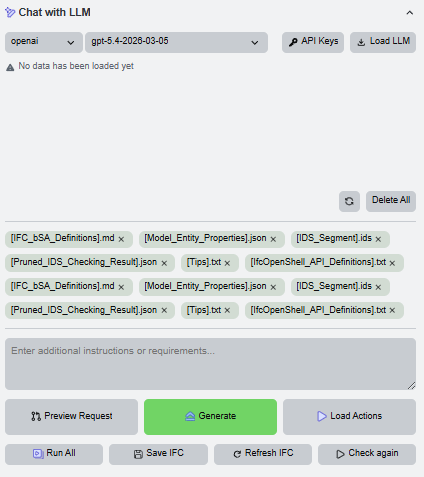
Chat with LLM panel with knowledge chips and generation controls

Before sending a request, open the preview to confirm the prompt structure, role, inputs, and the knowledge that will be used.
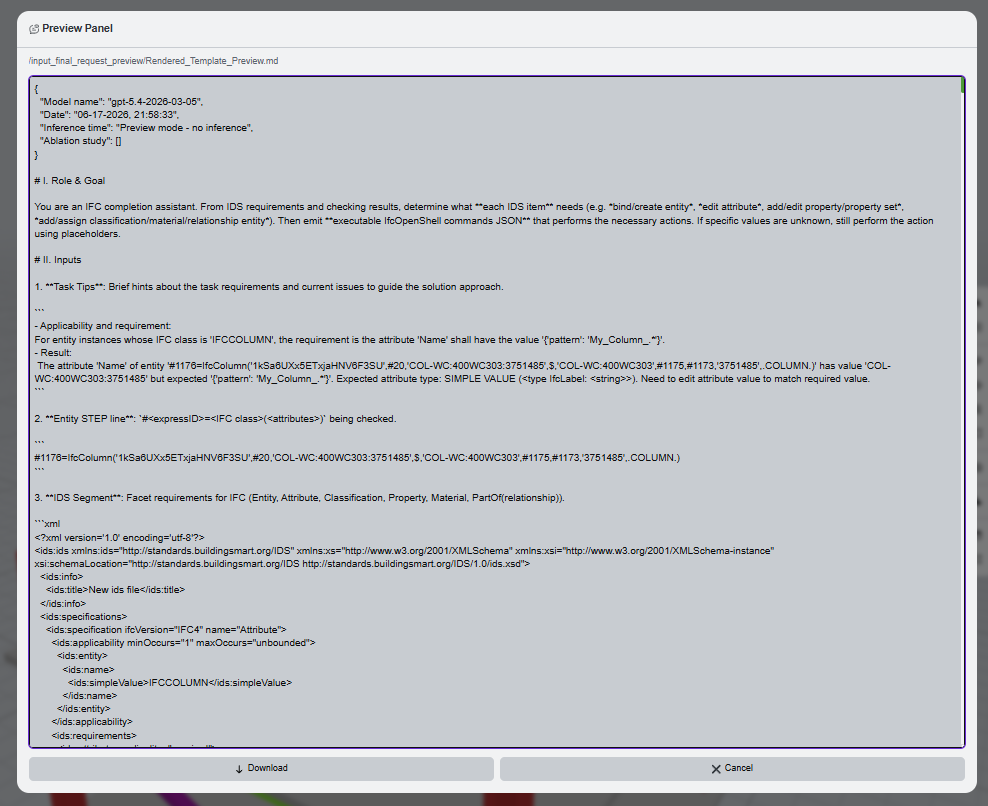
Prompt preview panel showing the prepared template

  • Preview Request. Inspect the full prompt before using the API.
  • Generate. Send the request and ask the model to build a command set.
  • Load Actions. Review the generated action list if it is available.

Read the generated result

Once the request is sent, the application shows a success toast and stores the generated script and action list in the panel below.

Toast confirming that a Python script was generated

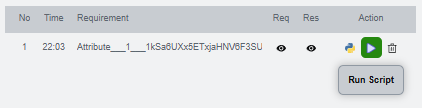
Action list table for the generated requirement

Generated command list with execute controls

  • Action table. Summarizes the generated requirement or task.
  • Command table. Shows the actual script logic to be executed.
  • Run button. Executes the selected command.

Execute and verify

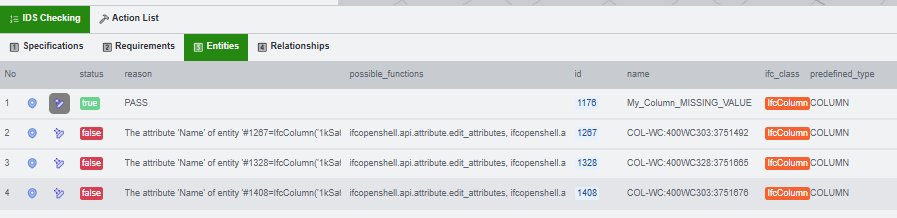
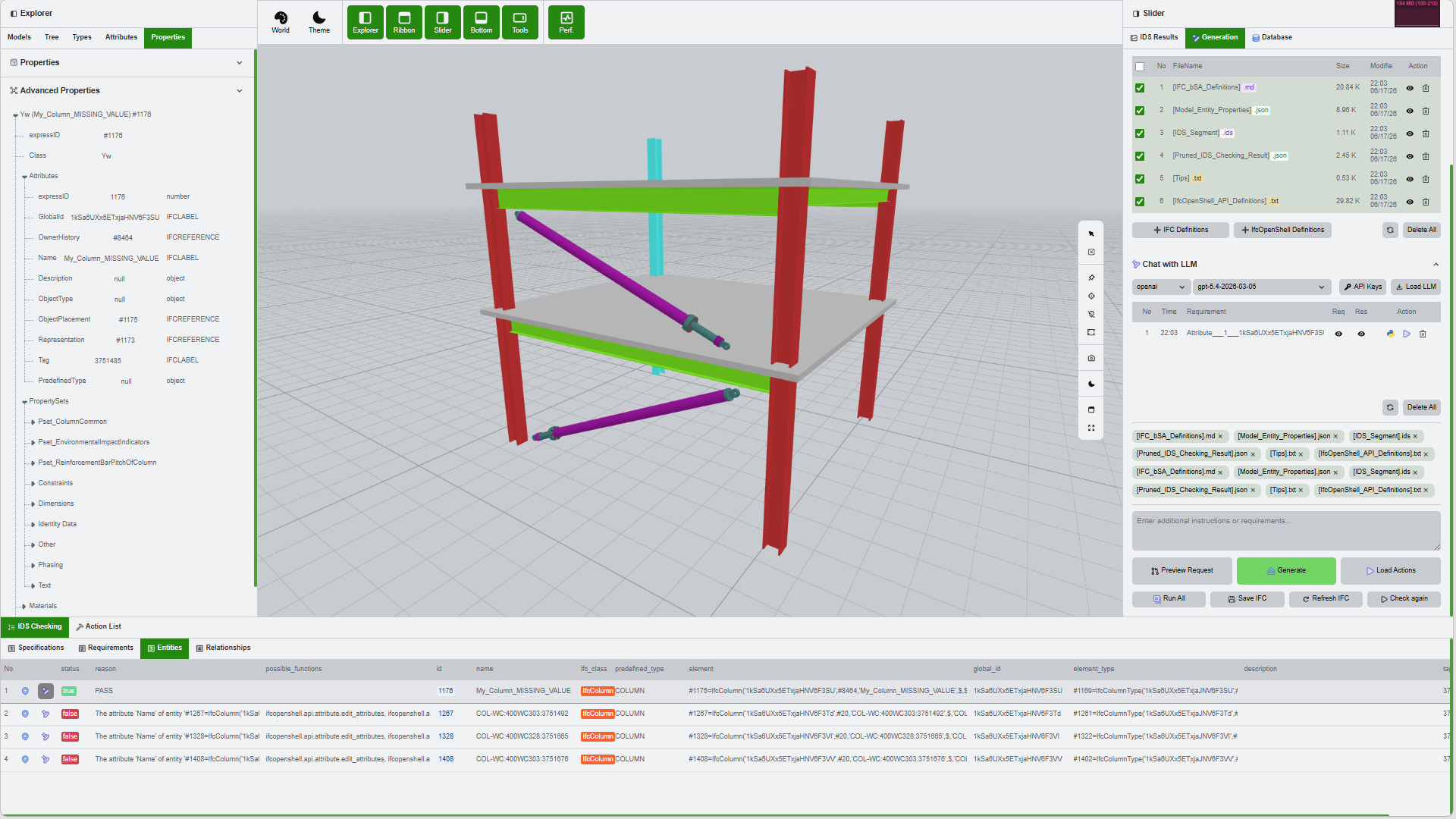
After execution, the application shows status toasts and the IDS result panel updates so you can verify whether the generated edit solved the original failure.

Execution status toast

Successful script execution toast

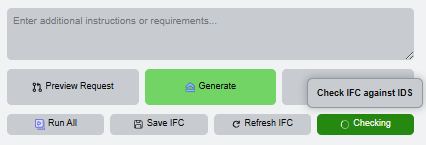
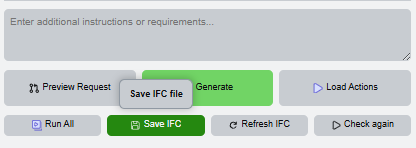
Bottom control bar with Run All, Save IFC, Refresh IFC, and Check IFC Again

Updated IDS result rows after execution

Full application after execution with model, tables, and results visible

  • Run Script. Applies the generated command.
  • Save IFC. Writes the edited model state.
  • Refresh IFC. Reloads the current model state if needed.
  • Check IFC Again. Re-runs IDS checking against the edited model.

Complete the loop

The final state is a compliant or improved model with updated check results. At this point the workflow can be repeated on the same browser session for another requirement or another project file.

  1. Prepare the knowledge and preview the prompt.
  2. Send the generation request.
  3. Review the returned actions and command list.
  4. Execute the command and save the IFC state.
  5. Run IDS checking again.
  6. Compare the new result with the original failure.